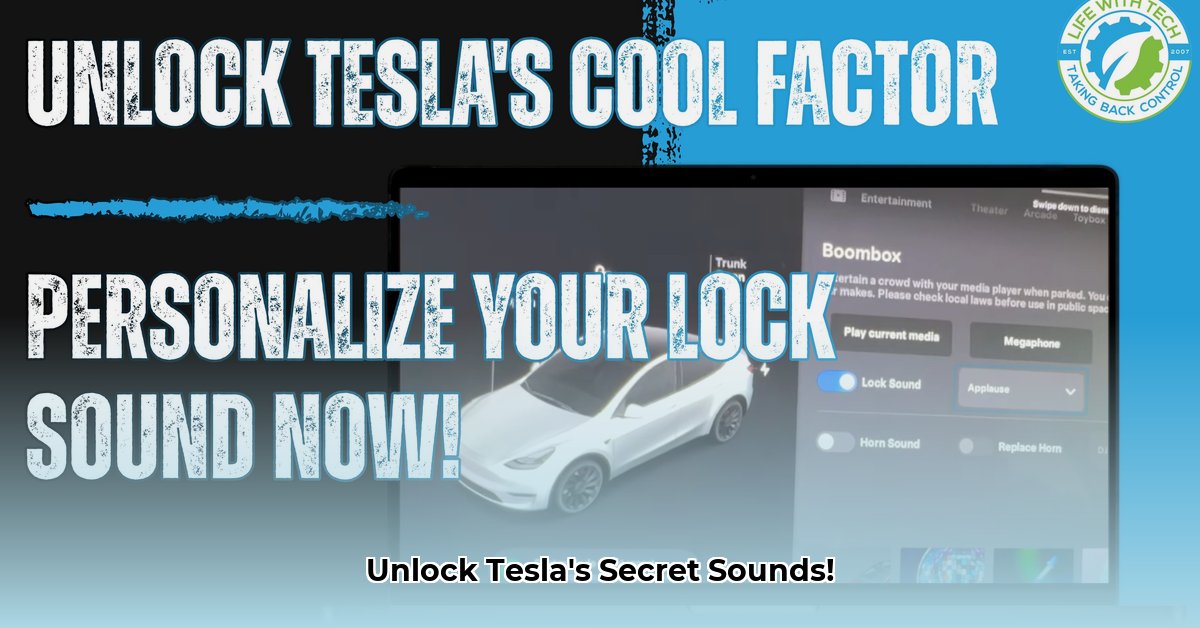
Want to personalize your Tesla's experience beyond the usual? Tesla's latest software update lets you upload custom lock and unlock sounds, transforming those familiar beeps into a personalized sonic signature. This guide provides a step-by-step walkthrough, along with insights into the feature's release and the vibrant community it's spawned.
Adding Your Custom Chime: A Step-by-Step Guide
Ready to ditch the default Tesla lock sound? Here's how to create a truly unique auditory experience for your electric vehicle:
Step 1: Choosing the Perfect Sound
First, you'll need a sound file. It must be a WAV file (a common audio format). Keep it short – a couple of seconds is ideal. Crucially, name the file exactly "LockChime.wav". Tesla's system is precise; misnaming it will prevent it from working.
Step 2: Preparing Your USB Drive
Use a USB flash drive formatted to FAT32 (a specific data organization method Tesla requires). Copy your "LockChime.wav" file directly onto the root directory of the USB drive—no folders needed. A simple, clean setup is key.
Step 3: Connecting and Accessing Settings
Insert your USB drive into your Tesla's center console. Navigate to your car's settings menu (the location varies slightly depending on your Tesla's software version). Look for a "Sounds" or "Audio" section.
Step 4: Uploading and Previewing
Your Tesla will scan the USB drive. Select your "LockChime.wav" file. A preview will play, letting you confirm everything sounds right before committing.
Step 5: Testing Your New Sound
Lock and unlock your car. Your custom lock sound should now play. Enjoy your unique auditory experience!
Troubleshooting Common Issues
Even with careful preparation, minor hiccups can occur.
Preview Problems: If you can't hear a preview, double-check the file name ("LockChime.wav"). Ensure it's a correctly formatted WAV file. Try a different USB drive; some drives can be finicky. A restart of your Tesla's infotainment system might also resolve the issue.
Sound Doesn't Play After Upload: The most frequent cause is the file name or location. Triple-check that "LockChime.wav" is on the USB drive's root directory (not inside any folders).
The Tesla Lock Sound Community and Beyond
Online Tesla communities are actively sharing custom lock sounds, creating a vibrant library of user-generated content, often called the "LockChime Library." This collaborative spirit highlights the fun and creative possibilities of this feature. Remember to respect copyright laws when selecting your sounds. Using someone else's copyrighted music without permission can lead to issues.
This feature reflects a broader trend: the increasing personalization of vehicles. It's likely that third-party developers will create tools to streamline the process further, making it even easier to create and share custom lock sounds.
Future Possibilities and Considerations
While this feature is currently popular, potential regulatory concerns remain, akin to the earlier discussions surrounding Tesla's Boombox feature. The question of how much customization should be allowed in vehicles is an ongoing debate. Ultimately, the long-term success of customized car sounds hinges on continued community engagement and support from Tesla.
Key Takeaways: Making Your Tesla Truly Yours
- Tesla’s customizable lock sounds add a fun, personal touch to the driving experience.
- Creating custom sounds requires uploading a correctly named and formatted WAV file.
- The community aspect is vital, with online resources offering a wealth of pre-made sounds.
- Always be mindful of copyright laws and potential noise regulations.